How to Use & Add Codes on melonDS Emulator
This guide will go over how to add and use codes in the MelonDS Emulator. All in all the process is very straight forward and similar to how you use codes on DeSmuME. For the purposes of this guide I will be using Chrono Trigger DS Action Replay Codes.
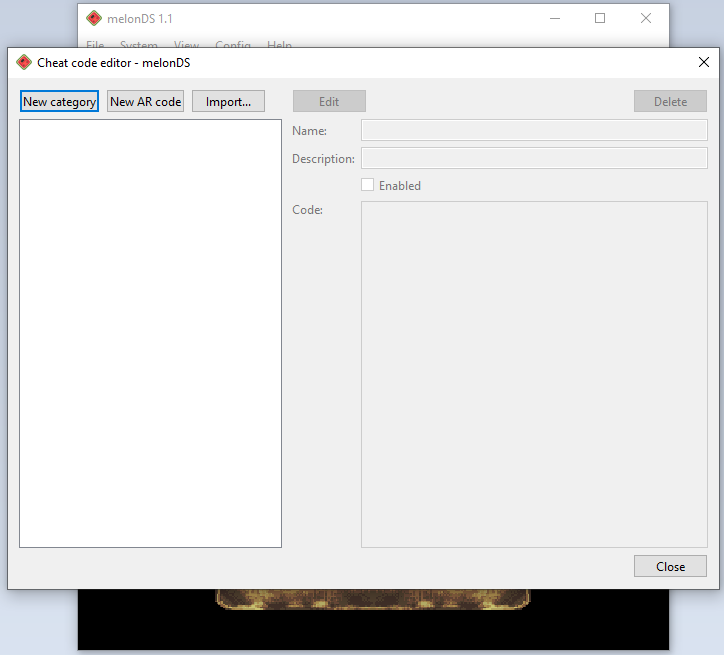
When you're ready to get started click on System at the top of the MelonDS window and scroll down to where it says Setup Cheat Codes; click this to open another window (pictured below).
Click to enlarge the picture
At the top of the window you'll see a button for New AR Code, click this to bring up an additional box that allows you to input new codes. You'll have 3 boxes for information when putting in codes, Name, Description and Code. Only the code field is actually required, you can leave the other ones blank. However, you should use a Description/Name that will help you remember what this code does. The code I will be putting in for this guide can be found below.
Max Gold: 020731FC 000F423F
Click on the picture below to see how I input the code from above. You'll want to input your codes in the same way.
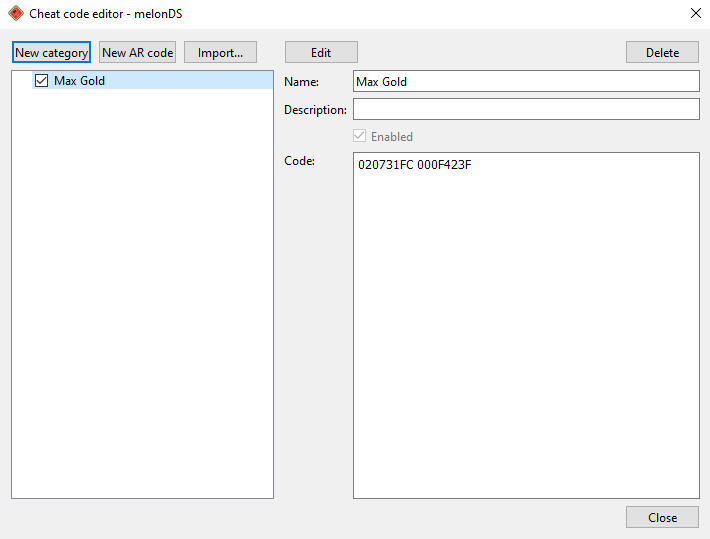
After adding your code click Save at the top and make sure the box next to it in the code list is checked (as shown above). This will enable the code in this window, but we still need to enable codes as a whole in the Emulator itself. Close the cheat code editor window and click on System on the toolbar, scroll down to where it says Enable Cheats and click that too.
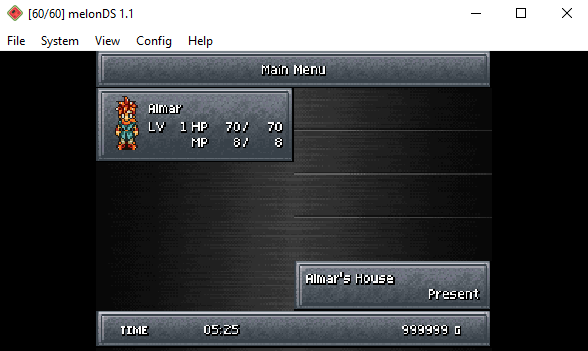
Once you've enabled the cheat you want and enabled cheats as a whole, return to your game and check if they're working. The cheat I used was for Max Gold, so we'll open our menu and check our gold value, as you can see in the picture below it's 999,999G and I am only at the start of the game.