
How to Use & Add Codes on ePSXe (v2.0.18) Emulator
This guide will explain how to add and use codes on the ePSXe Emulator for Ps1. When it comes to using codes on the ePSXe, it's a very straight forward process... Adding new codes is a bit more difficult though. Like some Emulators on the market, ePSXe has the ability to download codes with one click of a button. After downloading the codes all you need to do is enable them in order to use them.
For the purposes of this guide I will be using Digimon World 3 Action Replay codes as an example. If you'd like to see an older version of this guide that I wrote for ePSXe 2.0.5, follow the link provided.
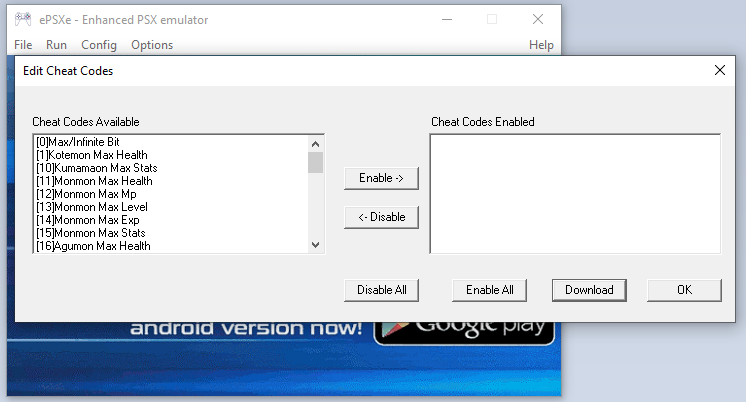
When you're ready to get started, the first thing you'll want to do is go into Options and select Cheat codes from the drop down. This will bring up a box similar to what you see below, yours will most likely be empty if this is the first time opening it for this game.
Click to enlarge this image
The first thing I recommend you do is click on Download in the bottom right. Doing this will download whatever codes ePSXe has in their database which will save you time entering codes and time making the cheat file if you plan to add some of your own codes. Be warned though, don't click Download after adding your own codes to the file or you'll delete anything you added and return to the default file you get.
Clicking Download got me about 20 codes with Digimon World 3, but not the code I wanted to use! For this guide I am going to make the Have All Items code that you see below work ingame.
Have All Items
3004858F 0063
30048590 0063
30048591 0063
30048592 0063
30048593 0063
30048594 0063
30048595 0063
30048596 0063
30048597 0063
30048598 0063
30048599 0063
3004859A 0063
3004859B 0063
3004859C 0063
3004859D 0063
3004859E 0063
3004859F 0063
300485A0 0063
300485A1 0063
300485A2 0063
300485A3 0063
300485A4 0063
300485A5 0063
300485A6 0063
300485A7 0063
300485A8 0063
300485A9 0063
300485AA 0063
300485AB 0063
300485AC 0063
300485AD 0063
300485AE 0063
300485AF 0063
300485B0 0063
300485B1 0063
300485B2 0063
300485B3 0063
300485B4 0063
300485B5 0063
300485B6 0063
300485B7 0063
300485B8 0063
300485B9 0063
300485BA 0063
300485BB 0063
300485BC 0063
300485BD 0063
300485BE 0063
300485BF 0063
Our first task is to locate the ePSXe cheat file that it downloaded for our game. This file is typically located in the ePSXe directory which is... wherever you installed it at. Inside the ePSXe directory open the folder called Cheats and you should see some text files in there. These text files will be using the game's region and game ID# which makes things a bit more complicated than they need to be. For this guide, Digimon World 3's file was called SLUS_014.36.txt .. Since it was the only file in the folder for me it was easy to find.
If you need help figuring out your game's ID code... My biggest piece of advice is to look it up (great advice, right?). ePSXe's website says you'll see the game ID when opening the cheat window but I didn't and I can't find any way to reveal it within ePSXe so, looking it up is your best bet. If you search something like, "Digimon World 3 Game ID" you'll get the information you want.
Now that you know the game's ID you can locate the exact file that we need, an example of what my file looks like for Digimon World 3 is shown below. As you can see, each code's name starts with an # Symbol followed by the code on the next line(s).
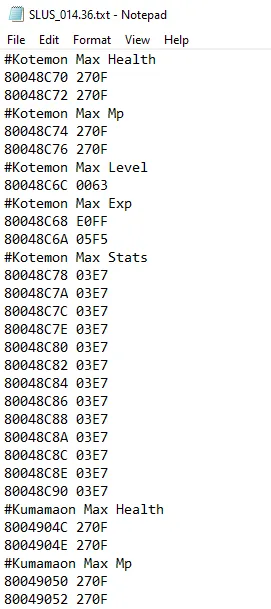
#Max/Infinite Bit
80048554 E0FF
80048556 05F5
#Kotemon Max Health
80048C70 270F
80048C72 270F
I copy and pasted two examples from the file onto the page, let's take a look at how they'd look when you find them on my website (or other sites):
Max/Infinite Bit
80048554 E0FF
80048556 05F5
Kotemon Max Health
80048C70 270F
80048C72 270F
Pretty similar, right? All you have to do is mush them together and add a # in front of the code's name when you're putting them into the file. The code I want to add into the file is too long to include the full thing in a picture, but here is what it looks like after I added Have All Items to the cheat file:
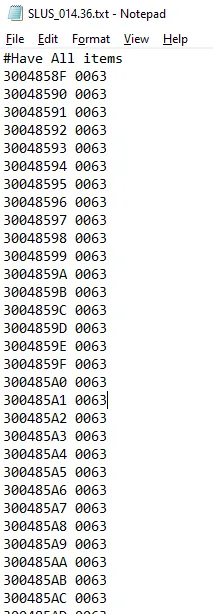
After adding your code, save the file and close it. You'll also have to close and relaunch your ePSXe Emulator to force it to reload the cheat file; if you're having an issue of codes not appearing in the list after adding them to the file... this is why. I searched but I didn't find any way to reload the file directly through the ePSXe GUI which means restarting the program is the only way.
Once you relaunch ePSXe and navigate back to the cheats menu you should see your cheat in the list, if you don't then you may have put it in the wrong file or formatted it incorrectly. To enable your code simply find it in the list and then left click it to highlight it, left click Enable -> and that should move the cheat to the right side of the window into the enabled category.
Now, all that's left is to return to the game and see if our cheat codes are working! As you can see from the picture below, when I open my inventory I have tons of items and 99 quantity of each, which means our code is definitely working.
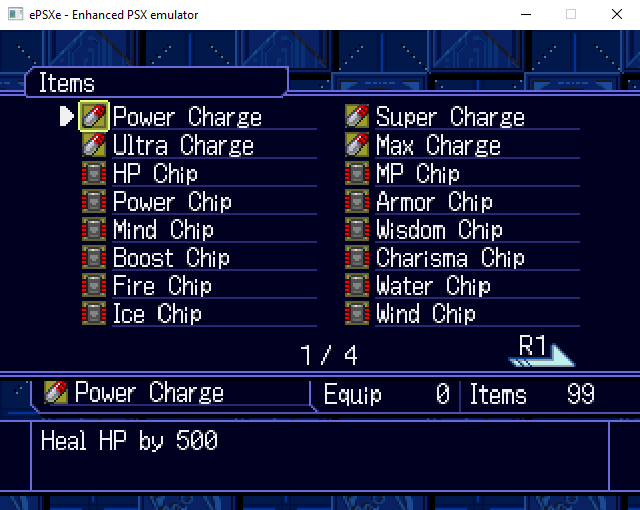
Digimon World 3 Have All Items Code Working