
How to Use & Add Codes on PCSX2 Emulator
This guide will go over how to use and add codes on the PCSX2 Emulator. Before we get started I feel the need to point out that this is by far one of the worst Emulators to use codes on out of all Emulators on the market. The whole process is convoluted and confusing but it does get easier once you manage to do it once.
If you're using an older version of the PCSX2 I recommend you use my How To Use Codes on PCSX2 (v1.4.0) Guide instead. That guide is when PCSX2 had the older white interface, things were setup differently.
When you're ready to get started, the first thing you'll have to do is get your hands on a .pnach file for your game or make one yourself. Luckily you can have PCSX2 auto generate a file with the exact name we need, that means you don't have to figure out the CRC and the region anymore like in the older versions.
Go into Tools and in the drop down select Edit Cheats... (pictured below). This will open (or generate) a .pnach file in the exact location we need it with the exact name we need for it. My file was located in C:\Users\Youkn\Documents\PCSX2\cheats
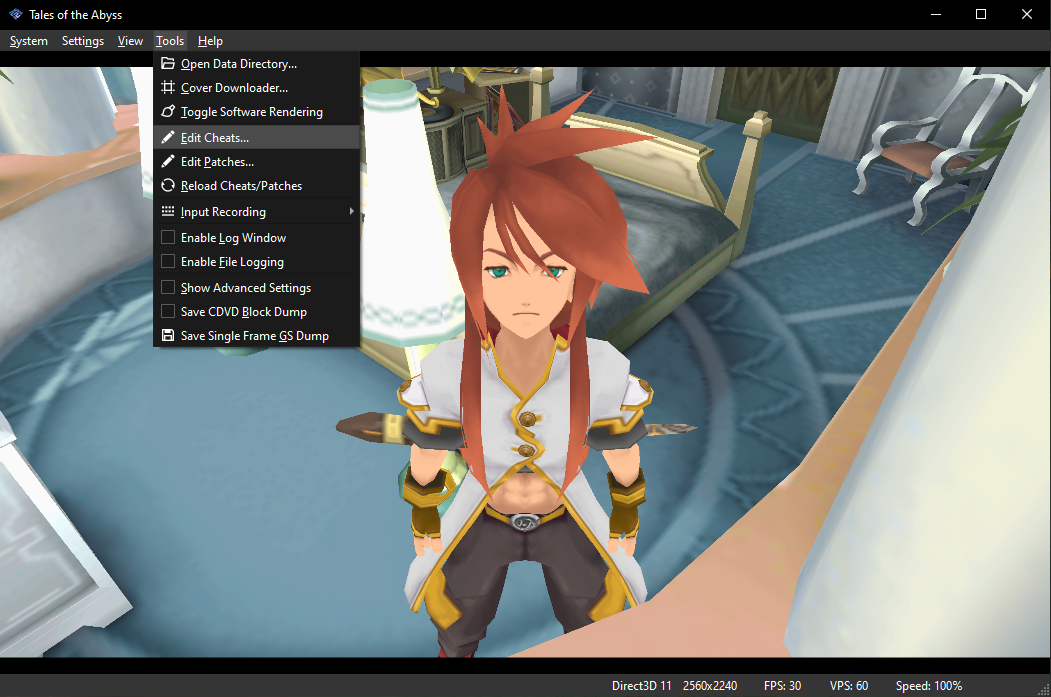
Click to enlarge this picture
Once you have the .pnach file located, the difficult part begins. We need to add codes to the .pnach file. Sometimes you can find .pnach files online, some websites like Gamehacking will generate them for each game. The downside is for some games there's like 1,000 codes which makes the whole thing super messy. The upside is not having to do what comes next...
For this first example I will use two codes for a game called Tales of the Abyss. These are Codebreaker Codes and they need to be converted into something that the .pnach file can use. Now is where the second really annoying step comes in, you're going to have to download another program to do these conversions for you...
There's a program out there called Omniconvert and it will convert all Codebreaker/Action Replay codes into a Raw/Unencrypted version that the .pnach file can read. Once the code is changed into something readable you'll have to format it properly for the .pnach, we'll cover that in a bit. Search online for PCSX2 Omniconvert and you should be able to find it fairly easily. As always, I will advise you to run a virus scan on it before running it (safe practice to adopt).
Below is a picture of what Omniconvert looks like when converting a code.
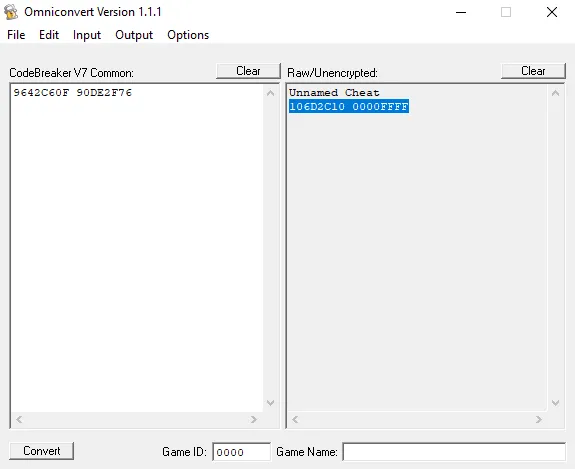
The first code we're going to do is Infinite Gald, it's the code that's shown below. When we put it into Omniconvert we get 106D2C10 0000FFFF which is the RAW/Unencrypted format for the code.
Infinite Gald: 9642C60F 90DE2F76
Our next step is to change the format of the new code, 106D2C10 0000FFFF into something that the pnach file can read. Below is exactly how I entered into the pnach file.
[Infinite Gald]
author=Almar (Optional Field)
description=(Optional field)
patch=1,EE,106D2C10,extended,0000FFFF
Let's specifically look at the line with the code and how it's formatted: patch=1,EE,106D2C10,extended,0000FFFF .. Before the first line of the code it says 1,EE, and in the middle of the code it says ,extended, ... When inputting a new code I typically just paste over the code itself and leave the 1,EE, and ,extended, in there.
If you find this part confusing don't worry because I will provide you with multiple examples for different games. For now, I will show you another Gald code for Tales of the Abyss.
Max Gald: C481C377 43165214
When we run this code through Omniconvert it comes out like this: 206D2C10 05F5E0FF which means it would be formatted into the pnach like this: patch=1,EE,206D2C10,extended,05F5E0FF.. below is how I put it into my pnach file.
[Max Gald]
patch=1,EE,206D2C10,extended,05F5E0FF
Before we can check if these codes work we need to enable the cheat itself in PCSX2. Click on the Settings button on the toolbar at the top and then click on Game Properties. Doing this will bring up the window that's shown below. On the left hand side click on Cheats to reach the section we need.
Are you still confused by how the pnach files work? Check out my More pnach Formatting Examples Guide for other examples of how to properly format the pnach file for your game.
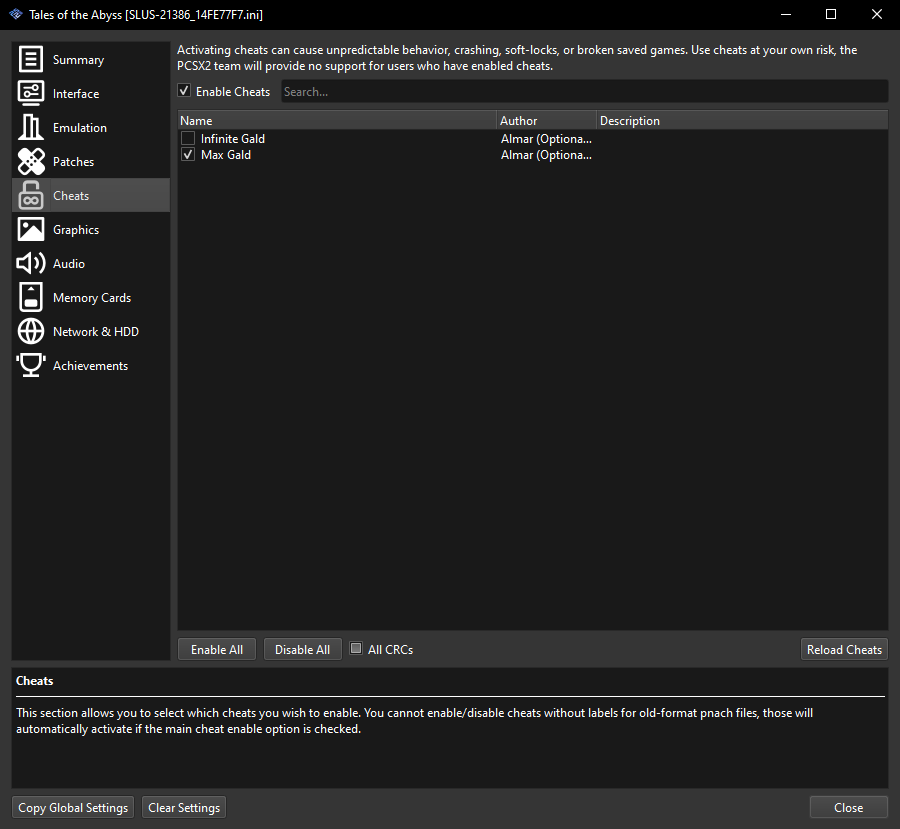
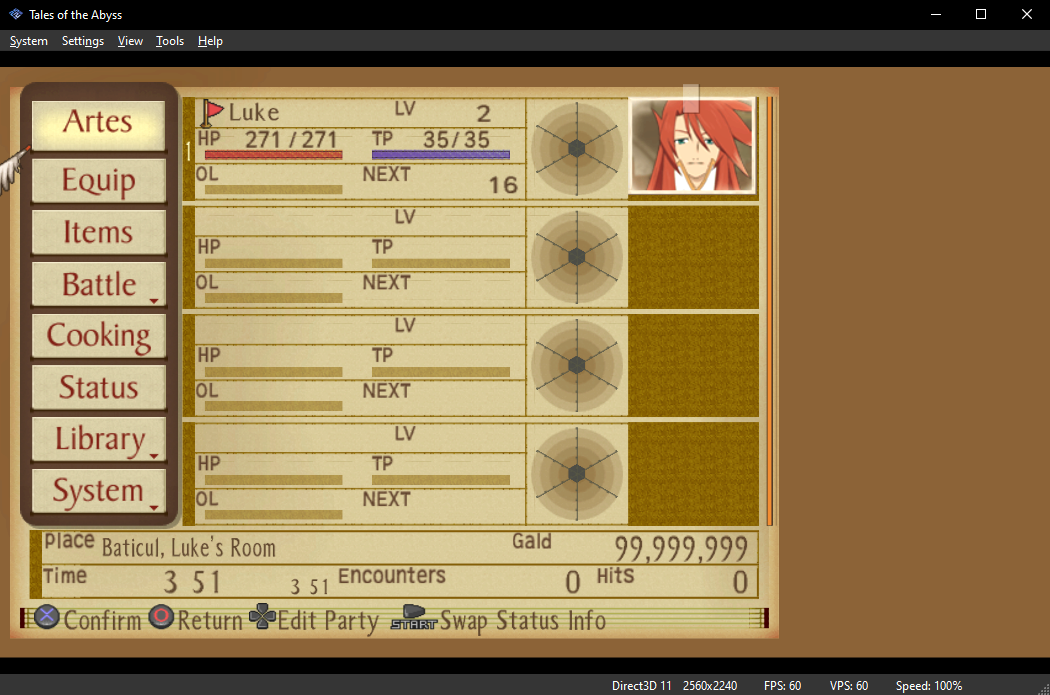
You can see that my Cheats window has two cheats in it, one for Max Gald and one for Infinite Gald. This is where you'll turn your cheats on and off. Make sure Enabled Cheats has a check at the top and then any cheat you want to use should be checked as well. I made sure both worked and they do, Infinite Gald gives 65k Gald and Max Gald gives 99mil. Below is a picture of the Max Gald code working.
Tip: Make sure you click Reload Cheats in the bottom right of this window after enabling your code. Clicking Reload Cheats will enable your cheats & give you a notification pop up in your game's screen that cheats have been turned on.
Now that you understand the entire process of how to add codes it's time to go through some troubleshooting tips and to provide you with more examples.
Common Troubleshooting Issues
Like I said at the start of this guide, using codes on the PCSX2 is a real pain in the butt. Out of all the questions I get from guides on my website, how to use codes on PCSX2 is at the very top of that list. Below I made a list of troubleshooting tips that can help you get codes on the PCSX2 working. They aren't in any specific order, but they're all tips that may help you in this process. I also have more tips on my pnach Formatting Examples page.
- If you think you did everything correct but the codes still aren't working, try clicking Reload Cheats at the bottom of the Cheat window under Game Properties. Alternatively, rebooting your game and restarting with the cheats on may fix it too. Sometimes cheats don't take effect right away once enabled.
- If you find this whole process too confusing my best advice is to download an already functioning .pnach file for your game. You can find them on gamehacking.org or through reddit or other similar forum posts. They're not hard to find honestly.
- You can also use codes by downloading the Codebreaker ISO for PS2 and running that disc before you run a game of your choice. This is how we used to use codes back in the day and it still works just like it used to.
- After inputting your codes make sure you go into Settings > Game Properties and enable the cheats in this section too. Each cheat you wish to use needs a check mark next to it. In some older versions they say to right click on the game and go into Properties instead.
- If you run Omniconvert on a code and it still doesn't work try switching your Input around. There are multiple options for Codebreaker, Action Replay MAX and Gameshark codes. Maybe the code you found is labeled wrong or you picked the wrong version so the conversion got messed up.
- As a rule of thumb, RAW codes will typically start with 20XXXXXXX or 10XXXXXX most of the time. If you convert a code and it doesn't start with one of those two memory addresses you probably chose the wrong conversion type.