How to Use & Add Codes on the Dolphin Emulator
This guide will teach you how to add and use Action Replay and Gecko codes with the Dolphin Emulator. It doesn't matter if you're inputting codes for a Gamecube or a Wii game, the process will be the same for both of them. One thing to mention early on is that Dolphin has a built in Gecko code database, with just a click of a button you can download tons of codes for any game of your choice. You may not even have to add your own codes, you may have all your needs met with the Gecko database.
If you're using an older version of the Dolphin Emulator I recommend you check out my How To Use & Add Codes on Dolphin (v5.0) Emulator. That guide covers a much older version of Dolphin which has a significantly different process of adding Gecko codes than this version.
When you're ready to get started, you'll want to right click on the game you wish to use codes for and select Properties from the list of options. Doing this will bring up the window shown in my screen shot below. The first thing you'll want to do is download the available codes for your game, to do that select Gecko Codes from the list.
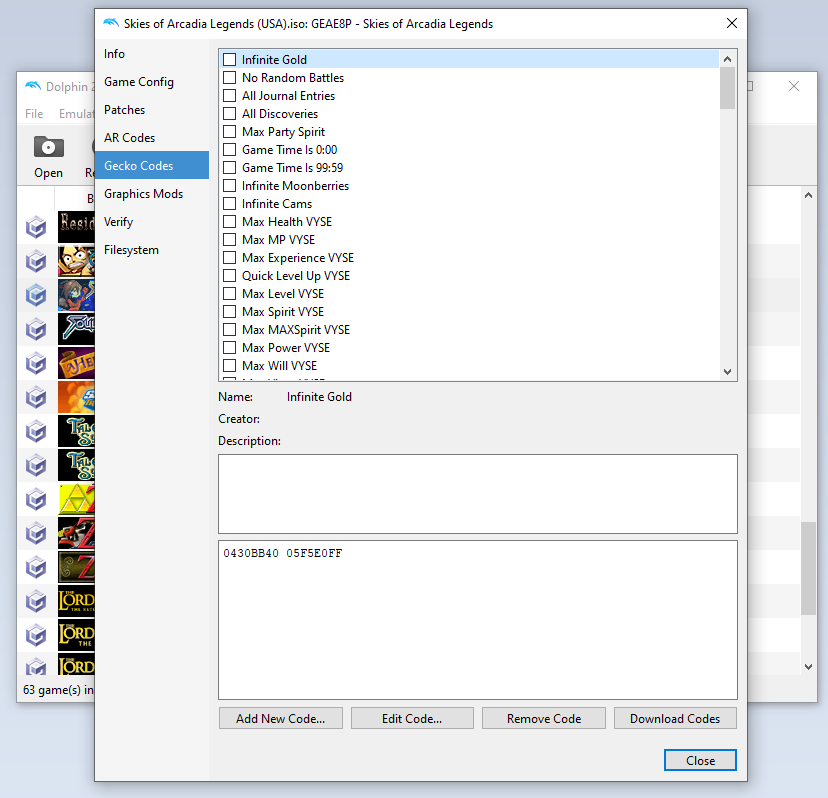
In the bottom right corner of the window you'll see a button that says Download Codes, left click that to get all the available Gecko codes through Dolphin. For my game it ended up being close to 100 codes in total which is probably all I would need as a normal player.
Let's say that the code you want isn't in the list... or maybe you have found an Action Replay code that you really want to use.. then you'll have to add a code. Thankfully, adding a code to Dolphin is really easy. I'll cover how in the section below.
How To Add Action Replay & Gecko Codes
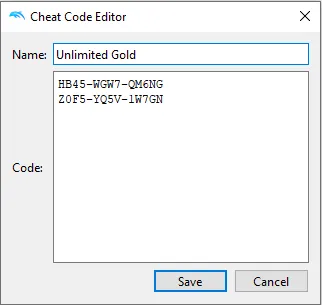
At the bottom of both the AR Codes and Gecko Codes window you'll find a button that says Add New Code. Click this and you'll get another box pop up (pictured below); you'll want to input the code and the name for it in the two fields. Below is what my Unlimited Gold code from Skies of Arcadia Action Replay Codes looks like when input correctly.
Unlimited Gold
HB45-WGW7-QM6NG
Z0F5-YQ5V-1W7GN
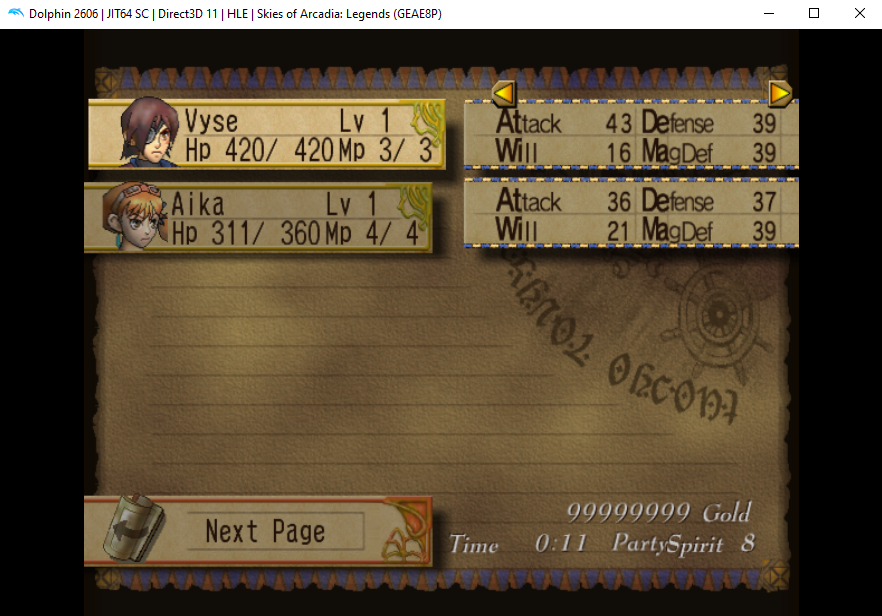
Once you've added your code, hit save and then make sure that it's checked in the list of codes. A check next to it means it's enabled. If everything checks out (pun intended) return to your game and see if your code is actually working. In the screenshot below you can see I have 99,999,999 gold which means the code is definitely working.