
How To Use Codes on Retroarch
This guide will teach you how to use cheats and add new ones on RetroArch. I will be giving you a few examples of different games for different cores that I got cheats working for. We'll go through the process step by step for each one just incase you didn't understand things the first time.
Let's get started by downloading the already available cheat files for RetroArch, there's a good chance that the cheat you want will be in these files and you won't have to go through the process of adding it manually. When you open RetroArch navigate to the Main Menu (tab on the left) and in there scroll down to the Online Updater option. A screenshot of what this looks like can be found below.
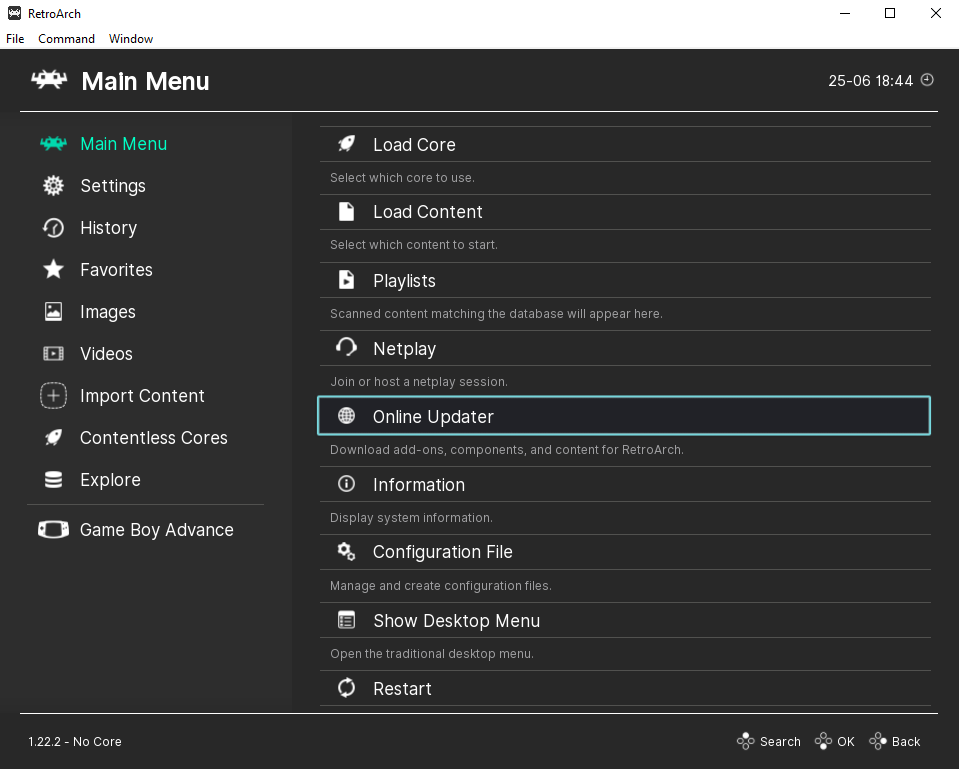
Click to enlarge this image
Once you're in the Online Updater scroll down to the bottom and click on Update Cheats, this will download a zip file and unpack it onto your device. Where the file is located depends on where you installed RetroArch at and the device you're using. For PC users, I found mine under C:\RetroArch-Win64\cheats .. This is the location RetroArch chose for me, so maybe yours is in a similar spot. In that folder you'll find a folder for every console that RetroArch has cheats for and inside those folders will be the .cht files.
A .cht file is basically a text file that you can open with Notepad or Notepad++ and edit. Below you can find a screenshot of what my Final Fantasy VI Advance.cht file looks like, this game is one of the example games that I use below to show you how to add a new cheat.
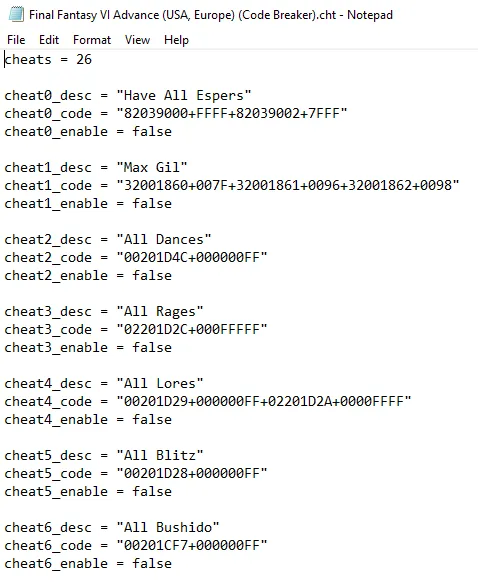
The first two cheats in the picture I copy and pasted below because I want to take a look at the format with you. The name of the cheat is the first line, the second line is the cheat itself and the final line is whether or not the cheat is enabled.
cheat0_desc = "Have All Espers"
cheat0_code = "82039000+FFFF+82039002+7FFF"
cheat0_enable = false
If you found the cheat above on my website (or online somewhere) this is what it would look like:
Have All Espers
82039000 FFFF
82039002 7FFF
RetroArch will require you to reformat it a bit to work in their program, most notably you need to add a + where there are spaces. When a code is two lines you'll also need to make it one line and add a + inbetween them. This is shown both in the codes above and below.
cheat1_desc = "Max Gil"
cheat1_code = "32001860+007F+32001861+0096+32001862+0098"
cheat1_enable = false
Now let's say you wanted to add a code to this file, it would look something like this... I will explain this (and how to make it appear in RetroArch) in more detail below in the examples, but for now here is the code and how it would be formatted in RetroArch.
Unlimited Gil: 32001862 0097
cheat26_desc = "Unlimited Gil"
cheat26_code = "32001862+0097"
cheat26_enable = false
How To Use Cheats on RetroArch
When you are in a game open the main menu for RetroArch, for PC users this means pressing F1. If it doesn't put you into the Quick Menu by default then navigate to it from the Main Menu. Inside of the Quick Menu is where you'll find Cheats (pictured below). Don't worry if you're having a hard time finding it, I did too my first time using RetroArch.
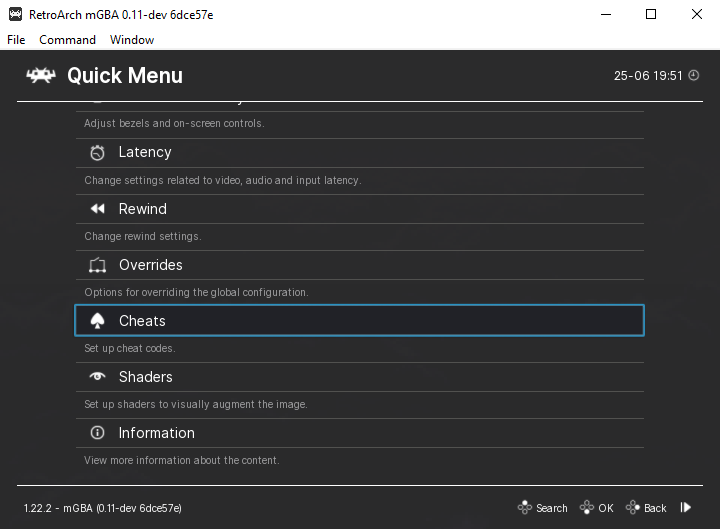
Click on Cheats and you will find yourself at a new screen with all the options you've been looking for. The first thing you should do in here (if you haven't already) is Load Cheat File (Replace). Append will add whatever codes are in that file to your already existing codes and it can get messy. After loading a file, if you scroll down you can see the list of all the cheats available to you.
RetroArch actually gives you an option to add codes using their interface, you can click Add New Cheat To Top/Bottom and then click on the new cheat you created. You can add the Description (name of the code) and the code itself through this interface. I'd only recommend doing it this way though if you're on a console. You can't copy and paste into this interface so you'll be stuck typing the entire code out by hand...
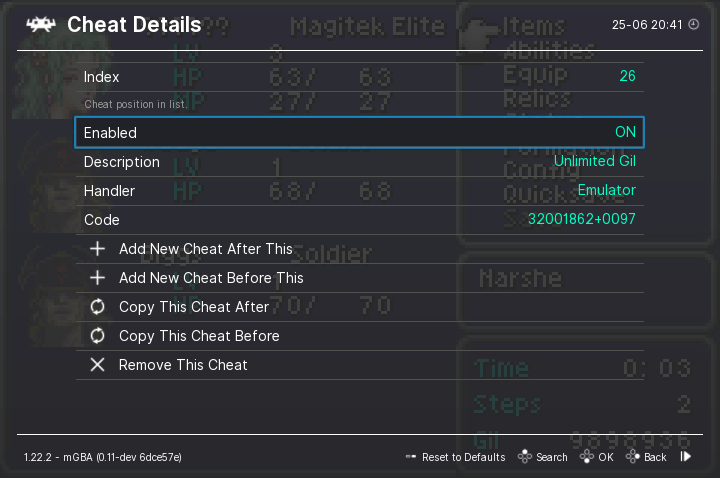
If you see the cheat you want in the list of cheats already available, click on it and go down to Enabled and switch it to ON (as pictured below). If this is your very first time using RetroArch, we're not quite done yet. The cheat may not work for you if you go back to game because you have to configure some other settings first.
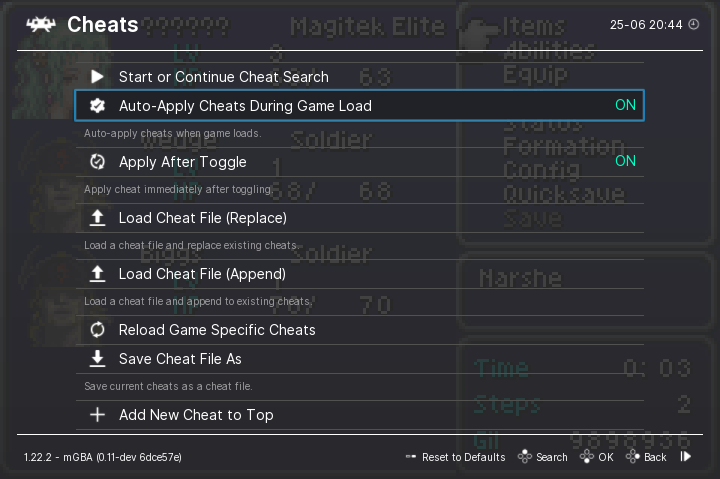
Go back one menu so that we're on the cheat menu for our game. Scroll up to the top and you will see two options, Auto-Apply Cheats During Game Load as well as Apply After Toggle. Auto-Apply during load will apply your cheats every time you boot up the game. Apply After Toggle will turn them on after you enable them like I just showed you above.
You should turn on both of these settings, they will make your life easier. If your cheat still isn't working you can either enable it on/off again or click on Apply Changes in this same menu, that will activate your code too.
For those of you out there whose cheat still doesn't work... There is a chance it may be a bunk cheat or that something else happened throughout the process of you enabling the codes. If you're trying to edit the .cht file to make your code work, then there may be a formatting issue or something else happening.
One issue I had with editing the .cht file is I didn't change the number at the top. At the top of each file it says cheats = ?? with a number in place of the ??. You can see in the picture I provided above mine said cheats = 26 well, when I added the Unlimited Gil code I needed to change it to 27 to make RetroArch recognize it. Also in the file I downloaded through RetroArch, cheats 16-20 were missing an end " so I am not even sure if they'd work or not. My advice, if you're having an issue with the files run them through AI and have it fix the formatting problems. AI can't cure cancer yet or even give you reliable answers, but basic formatting? Pretty good.
Final Fantasy VI Advance (Single Line Code)
Unlimited Gil: 32001862 0097
cheat26_desc = "Unlimited Gil"
cheat26_code = "32001862+0097"
cheat26_enable = false
I used this code as an example many times above so I won't go into too much detail with it here. This code is from my Final Fantasy VI Advance Codebreaker Codes and it wasn't a part of RetroArch; the format shown is exactly how I entered it into the Final Fantasy VI Advance (USA, Europe) (Code Breaker).cht file.
Before I could see the code in RetroArch I also had to change the top of the code file to cheats = 27
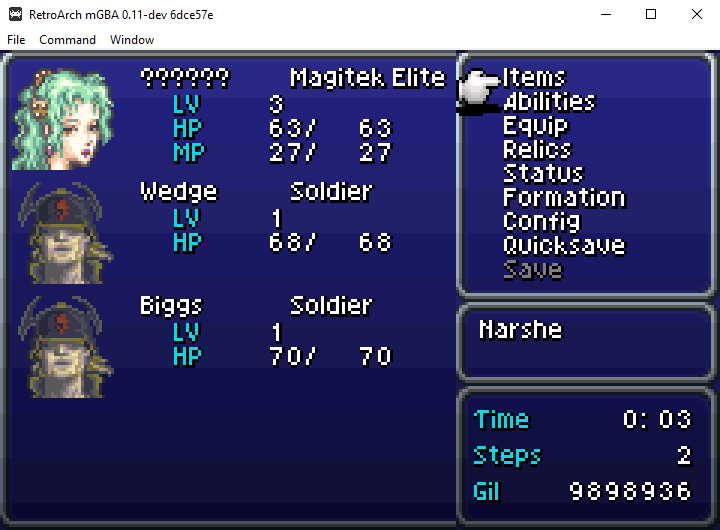
After doing all of this and enabling the code ingame, I went into my menu and it was working. As you can see I have 9mil Gil and I have only just begun the game.
Breath of Fire III Codes (Multi-Line Codes)
We'll switch consoles to Playstation 1, for this I am using the Beetle PSX Core in RetroArch. Just like I mentioned earlier, I loaded the game and hit F1 to bring up the Quick Menu. Once in there I went to Cheats and selected Load Cheat File (Replace). This added 6 cheats to the game from the file but I want to add my own cheats into the .cht file.
The codes I want to use are Codebreaker Codes from my Breath of Fire III Codebreaker Code Page. To add these, the first thing we'll want to do is format them properly.
5 million Zenny
80144F50 F08E
80144F52 02FA
cheat7_desc = "5 Million Zenny"
cheat7_code = "80144F50+F08E+80144F52+02FA"
cheat7_enable = false
Have All Items
50004301 0000
3014534C 0014
50005B01 0000
3014524C 0014
50003301 0000
301453CC 0014
50005201 0000
301452CC 0014
50004301 0001
3014514C 0000
50005B01 0001
3014504C 0000
50003301 0001
301451CC 0000
50005201 0001
301450CC 0000
cheat8_desc = "Have All Items"
cheat8_code = "50004301+0000+3014534C+0014+50005B01+0000+3014524C+0014+50003301+0000+301453CC+0014+50005201+0000+301452CC+0014+ 50004301+0001+3014514C+0000+50005B01+0001+3014504C+0000+50003301+0001+301451CC+0000+50005201+0001+301450CC+0000"
cheat8_enable = false
Note: I put a space in this code so that it didn't stretch the entire page.
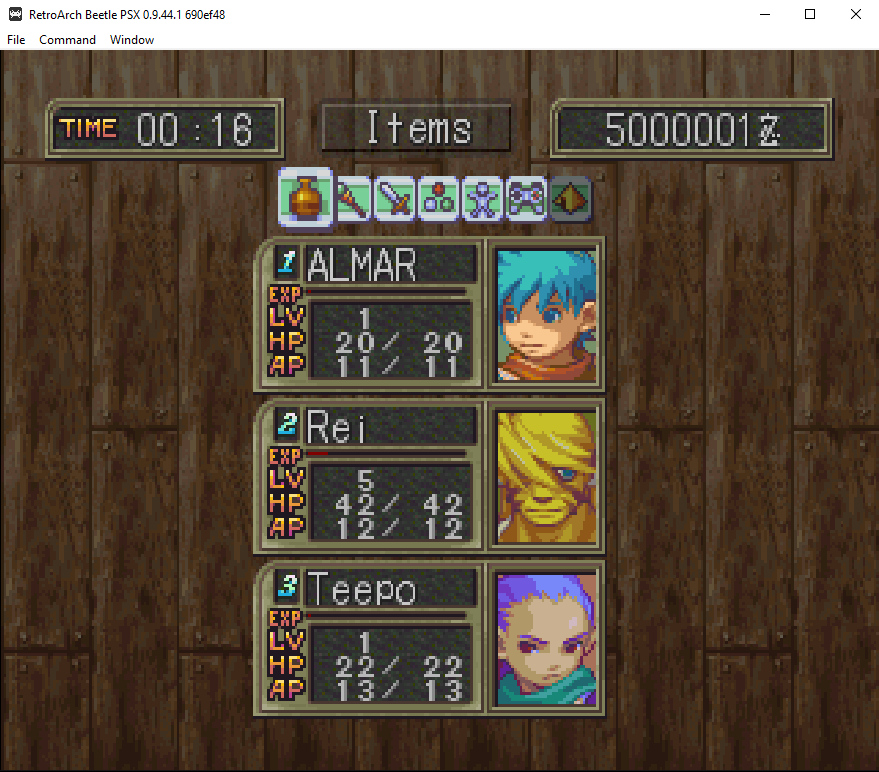
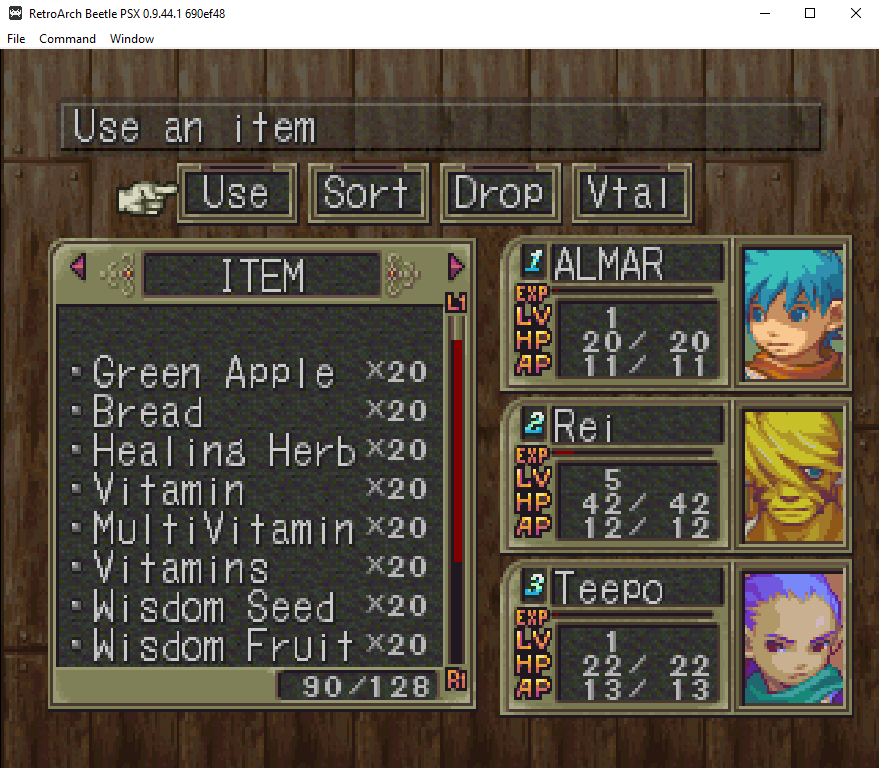
Once they're formatted properly I added them to the RetroArch-Win64/cheats/Sony-Playstation/Breath of Fire III (World) (Game Buster).cht file. Before I was done with the file I also changed cheats = 7 at the top from 7 to 9. When I returned to my game, both cheats were working (pictured below).
Mega Man X3 (SNES Game Genie Codes)
The next game we'll do an example for is Mega Man X3 for SNES. When you use RetroArch's built in cheats there are actually numerous files for the game... You have, Mega Man X3 (Rumbles).cht, Mega Man X3 (USA).cht, Mega Man X3 (USA, Europe) (Action Replay).cht and Mega Man X3 (USA, Europe) (Game Genie).cht. I believe all of these files are for the same version of the game but I chose Mega Man X3 (USA).cht to add my codes to.
For the purposes of this example, I took a Codebreaker code from Mega Man X3 Codebreaker Codes.
Unlock all Equipment when you press Start
CBA6-0DD7
EEA6-0D07
62A6-0D67
Since the .cht file already has codes you'll want to change the cheats = 107 at the top of the file to cheats = 108. Below is the formatting I used for the cheat when I added it.
cheat107_desc = "Unlock all Equipment When You Press Start"
cheat107_code = "CBA6-0DD7+EEA6-0D07+62A6-0D67"
cheat107_enable = false
Once you add the cheat into the file and change the cheats = 106 at the top to cheats = 107 you'll need to reload the file in Retroarch. I just do Load Cheat File (Replace) every time. You could load multiple cheat files for this game though using Append. If you don't have Apply After Toggle already on in RetroArch you'll need to choose Apply Changes instead, that will activate the cheat you just turned on.
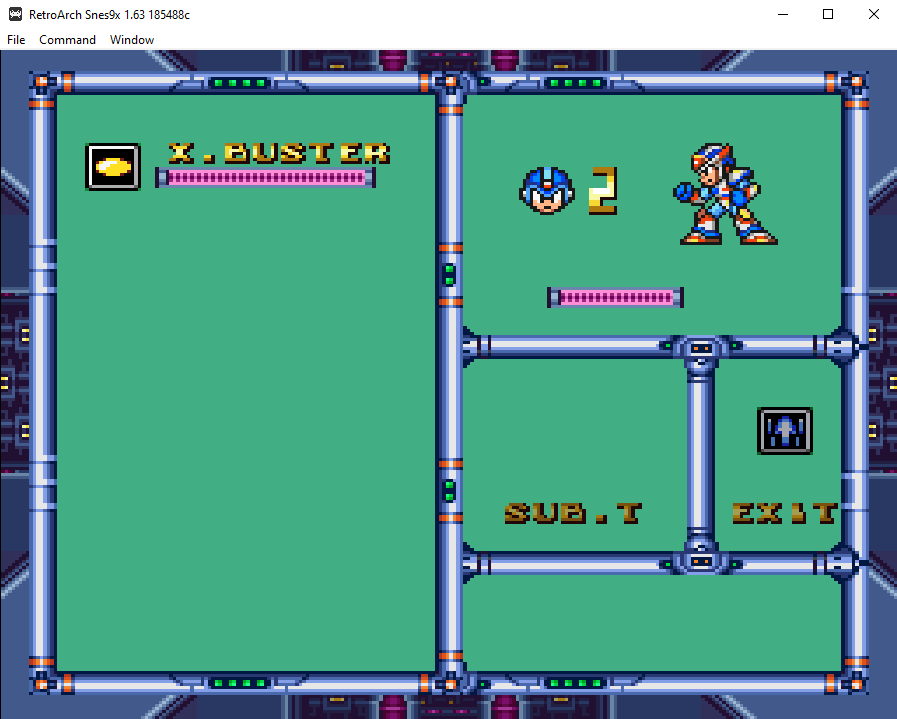
As you can see in the picture above, Mega Man is wearing a full suit of armor in the picture, despite me being at the very start of the game. Which means the code is working.