
How To Use NES Codes on Nestopia
This guide will cover how to use NES Codes on the Nestopia Emulator when playing NES Games. Before we get started, I strongly encourage you to download the Nestopia Cheat Pack/Mighty Mo's Cheat Code Pack and use that with the Emulator. This package of codes will save you tons of time inputting codes yourself since the package contains codes for 800~ish games.
For the purposes of this guide, we'll be testing our codes on The Legend of Zelda (USA) (Rev 1 aka Version 1.1). Despite the fact that the game says Version 1.1, almost all of the Version 1.0 codes work on the game. It varies from game to game when they do revisions, sometimes lots of codes still work on the game between versions and other times they will not.
To get started with inputting some codes you'll first want to click on Options at the top and then click on Cheats in the drop down. Doing this will bring up the same box that's shown in the picture below.
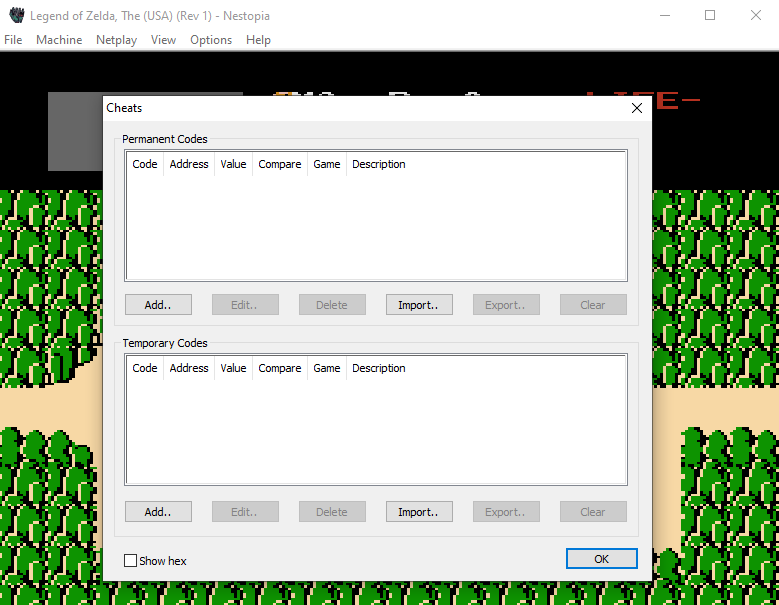
As you can see there is a top section for Permanent Codes and a bottom section for Temporary Codes. Permanent Codes are codes that will be saved when you close the Emulator, thus letting you easily enable them again the next time you play. Temporary Codes are typically codes you'll be toying with or using for testing purposes. The cache of Temporary Codes is cleared each time you close the Emulator.
For the purposes of this guide I am going to put the code into Permanent Codes since we're using codes I know work and would like to keep on. If you downloaded the Nestopia Cheat Pack above you'll be able to click the Import.. button and import an .xml file of codes for your game (if the game has any). To input a new code, click on the Add.. button instead.
We're going to start by adding a Game Genie code into this Emulator since they're very easy to do. Once I teach you how to do that I will show you how to use the Raw/Action Replay codes that are on my website/other websites too. Below is a picture of the Cheat window already filled in with everything we need to make a Game Genie code work.
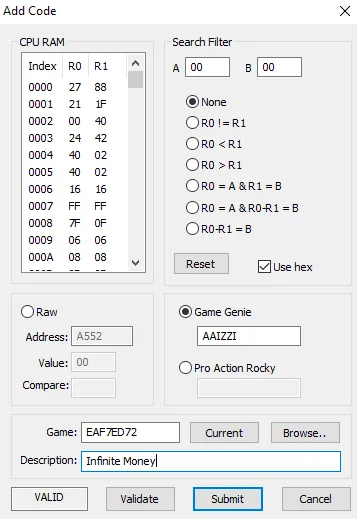
The first thing you'll want to do is click the dot next to the Game Genie box to highlight it. Copy and paste the GG code you have into that box and then click the Current button that's below it to generate your game's ID. The next thing you need to do is type in a description for the code, I just use the code title "Infinite Money" as my description. Once you're done you can hit Validate if you'd like and it will tell you if the code is valid or invalid. My code comes back as VALID so we have no issues there, once you're done hit Submit to save the code.
When using this code nothing happens initially after I enable it which is pretty typical for using codes on the NES. Many of the codes (especially Game Genie ones) will need a console reset to properly update and make them work. In my experience it doesn't matter if you do a soft or hard reset, both seem to work fine.
Below are the two Game Genie codes that I used when writing this guide. Infinite Money works but it's kinda shoddy, the money will keep going up until it hits 255 then starts over from 1 again and goes up to 255 over and over again. Sometimes codes do this (unfortunately) and it may be a version issue or it may just be a poorly designed code. The Start Game with All Items code though works like a charm, even better than Infinite Money.
Infinite Money: AAIZZI
Start Game with All Items, Maxed out Bombs, Keys and Money: PAEZYTAA
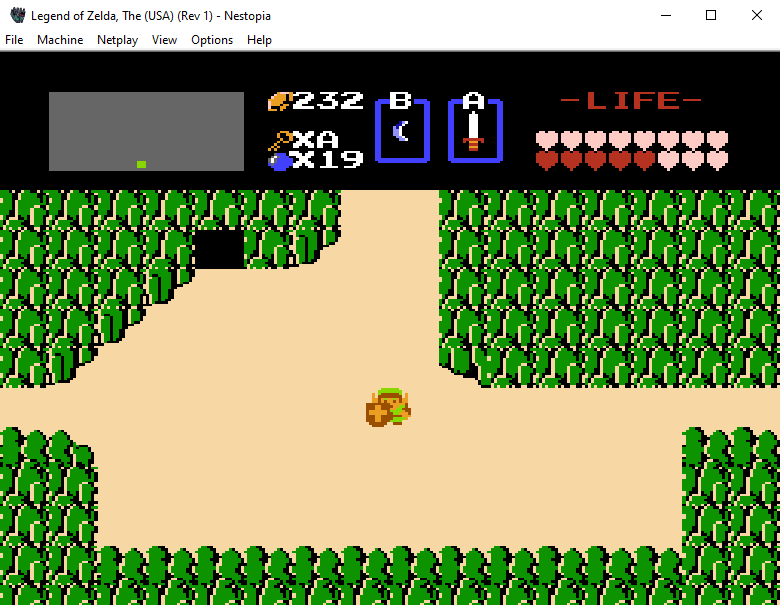
All the cheats we enabled are working!
That's all it takes to use Game Genie codes on the Nestopia Emulator. Using a PAR (Pro Action Rocky) code works the same as a Game Genie code, it's the same basic process... When it comes to using a Standard/Action Replay/Raw code (whatever name people use for it) the process is a bit more complex...
Using a Standard/Action Replay/Raw Code with Nestopia
Now that we learned how to use Game Genie and PAR codes with Nestopia, it's time to setup a Raw/Action Replay Code instead. This process is a bit more complicated since it requires some guess work/knowledge of these codes and how they work. For the purposes of this example I will be using the two codes shown below, Have Magical Sword and Have Red Potion.
Have Magical Sword: 0657:03
Have Red Potion: 065E:02
Let's start with the Magical Sword code, the first thing you'll want to do is click the check box next to "Use hex" otherwise we won't be able to properly input a Raw code. I have this section highlighted in red below. If you don't select "Use Hex" the program won't allow you to use letters which is no-good.
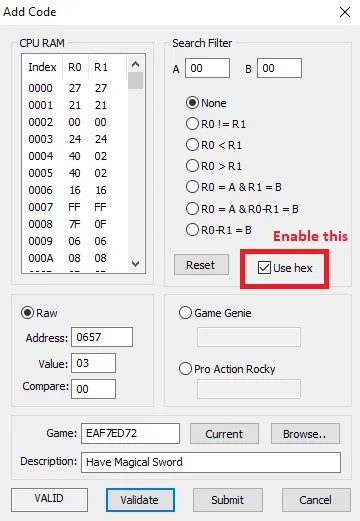
Now, as for inputting the code the first four digits go into the Address box (as shown above). So for our Have Magical Sword code that means 0657 go into Address. The remaining two digits (03) will go into the Value box. Compare is when things start to get tricky and it requires some guess work. What goes into the Compare box is the original value of whatever it is you're using a code for.
Have Magical Sword: 0657:03
So, for the two codes we're using with this guide Compare should be 00 because that's what the value will be when you have nothing. If I had a regular sword instead of nothing I may want to make the value 01 instead. When using Raw codes you may have to experiment a bit to see what the proper value needs to be in Compare. One upside is when using Raw codes you typically do not have to reset the game to make them work... So it makes trial and error much easier. You can just save the code and go back to the game to see if it works without having to reset.
I'll give you one more example before we change gears a bit, the next code I enabled was Have Red Potion (pictured below).
Have Red Potion: 065E:02
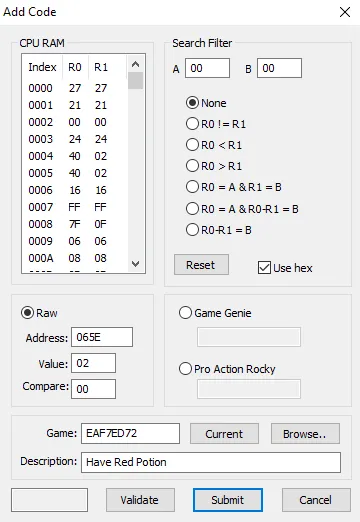
As you can see, I have formatted it very similarly to the other code. The Compare value is also 00 because you don't start with any potions therefore the current value would be 00. If you already have something in your potion slot you'll want to try a different Compare value, like 01 instead. Now the final question is, did the codes work? Let's check!
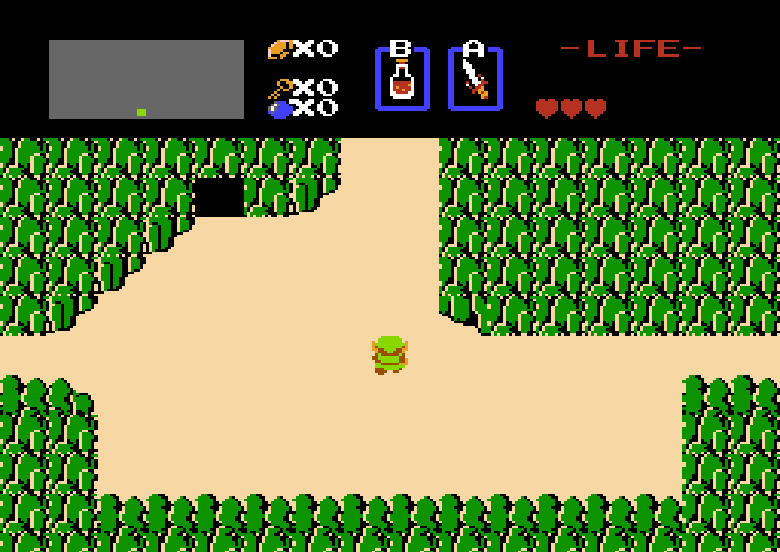
Like I said before, with Raw codes you normally don't have to reset the game to see if they worked. Once I exited out of the cheat window I had a Red Potion pop into the B slot and a Magical Sword pop into the A slot. No reset required!
Using Multi Line Codes on Nestopia
Sometimes the codes you find are going to be multiple lines (as shown below). When you encounter a code like this you're going to have to input each line as an individual code. Follow the same instructions above when it comes to inputting the code.
Once all lines are entered, make sure they're all enabled to make use of the code.
All Items For Free
SZVXASVK
AEVEVALG