
How To Use Genesis Codes on Kega Fusion
This guide was made for the Kega Fusion Emulator, it's designed to help you use the codes that you find on my website and other websites with the Emulator. Kega Fusion is capable of running multiple different SEGA consoles but this guide will mostly focus on Genesis. The process of using codes for all of these consoles is the same.
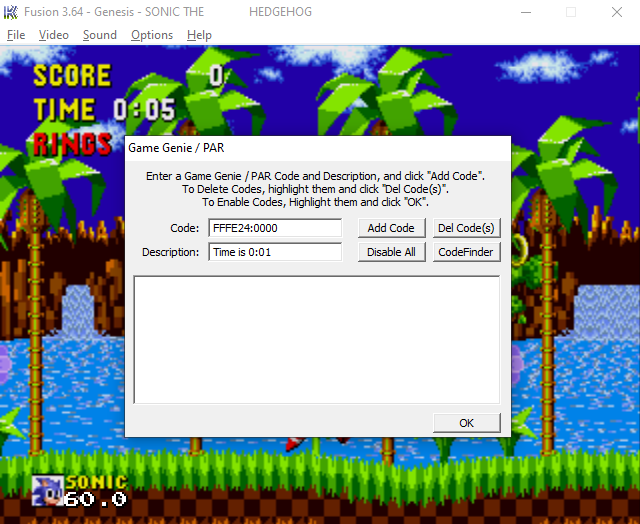
In order to input a new code you'll want to click on "File" in the toolbar at the top of your Emulator. About half way down the list you'll see an option for Game Genie / PAR -- this is what you want to click on next. This will bring up a new window, which is shown in the picture below.
For the purposes of this guide I will be using Sonic the Hedgehog on Genesis as an example game.
Click to enlarge this picture
As you can see from the picture, this is incredibly straight forward. They give you two boxes, the one labeled Code is where you'll put the Code and the one with Description is where you'll put the name of the code. For this guide I have chosen two different codes, one of them is an Action Replay code and the other is a Game Genie.
You can easily tell codes apart by their format. Game Genie (on this console) is always four letters/numbers and a dash followed by four letters/numbers. Action Replay codes (on this console) are always 6 numbers/letters followed by a : and then four more numbers/letters. Examples are shown below, these are also the two codes we'll be using in this guide.
Set Total Time To 0:01 (Action Replay): FFFE24:0000
No background (Game Genie): EB0A-AA2E
Copy and paste both the code and the name of the code into your Emulator then click "Add Code" to make it appear in the list below. When you input a Game Genie code it'll automatically convert it into a PAR code (as seen below). Once you've input the codes you want to use, you'll want to listen to the instructions given to you in the Emulator. To enable a code, highlight it and then click ok at the bottom.
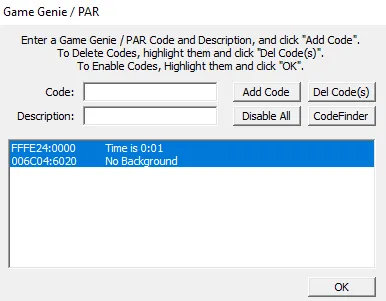
As shown above, we have two codes that are currently enabled. One that makes our time always 0:01 and the other will remove the background. We have them both highlighted which means they're active ingame, so let's check! In the screen shot below you can see that my time is set to 0:01 and the background is starting to disappear from the level. In order to make the background cheat work I needed to run around a little so that a new (non) background would load in.
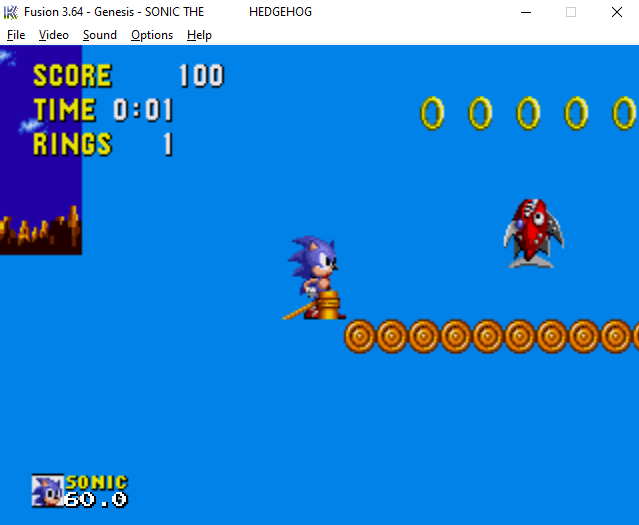
No background and the timer is 0:01, looks like the cheats work!
Sometimes certain cheats can be finicky like this. You may need to open and close a menu, change screens or just run around for a bit to make the memory address they're using updates.